CuteHotspot. Wi-Fi Hotspot Software
Documentation
Customer Sessions
Pre-paid session has a time limit, depending on the customer balance. A pre-paid session is automatically stopped when the time is over.
Post-paid session doesn't have any time limit unless an operator specifies it. The customer is charged after he/she logs out.
Customer starts session from terminal
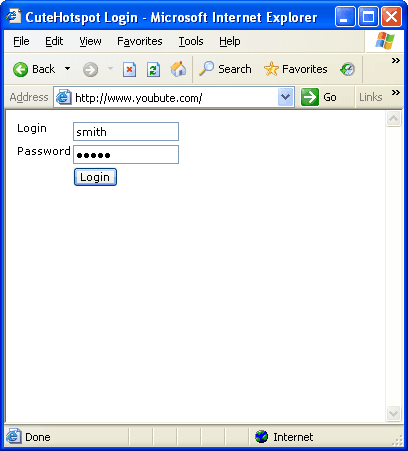
When a customer opens a website from his terminal, he is automatically redirected to the CuteHotspot login page.
Use a customer or ticket login/password to login.
Monitor sessions
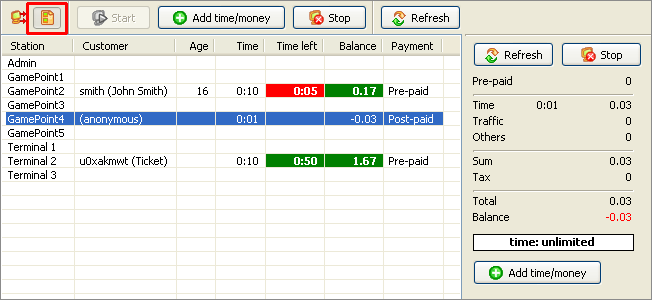
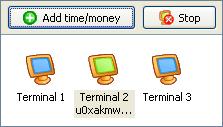
Press the List button to switch between the terminal icons and the list:
Extend session (add time)
Press the "Add time" button to extend a session:
Sell item
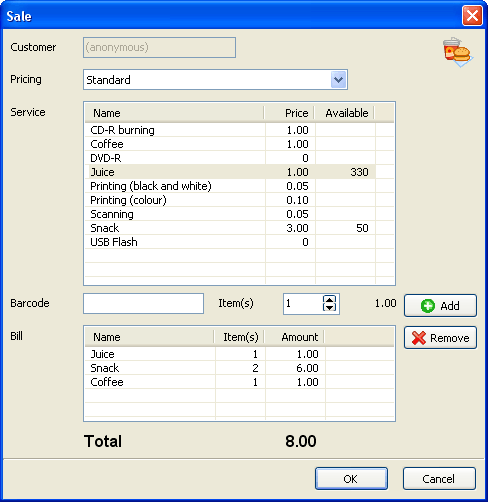
Use the Sell terminal popup menu to add any service/product to a session:
Customer stops session
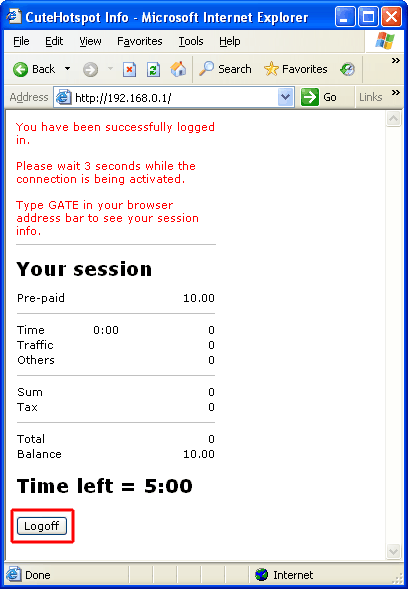
Use the "Log off" button in a web browser to stop your session.
Operator stops session
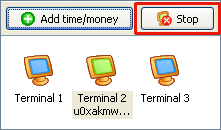
Select a terminal icon or session in the list and press the Stop button:
Close session
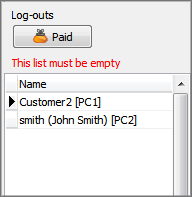
Logged out post-paid sessions are displayed in the Log outs list.
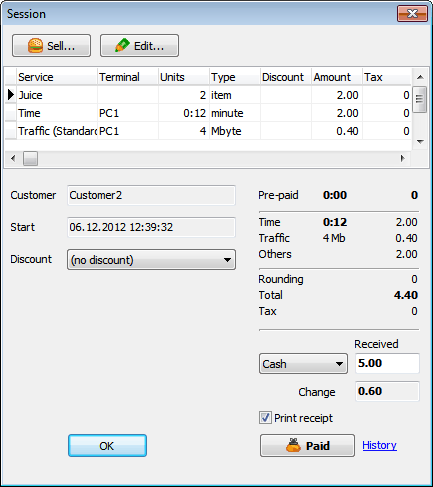
Double-click on a session, collect required cash (or accept a credit card), give change and press the Paid button.
Pre-paid sessions are closed automatically unless there have not be any products sold.
Browse sessions
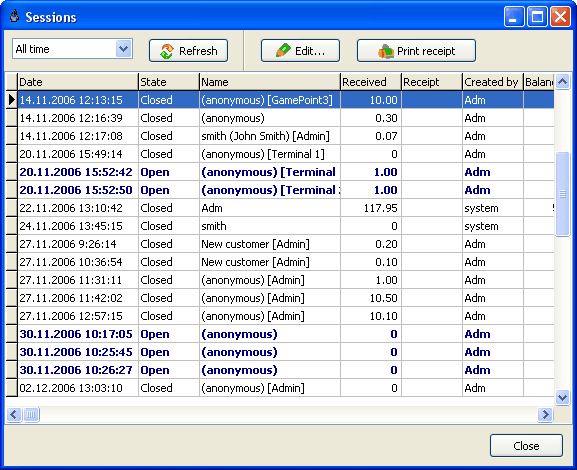
Sessions window (main menu > View > Sessions) displays today/yesterday/this week/etc. customer sessions.
Use the sessions window to re-print a receipt after a session has been closed.
Refunds
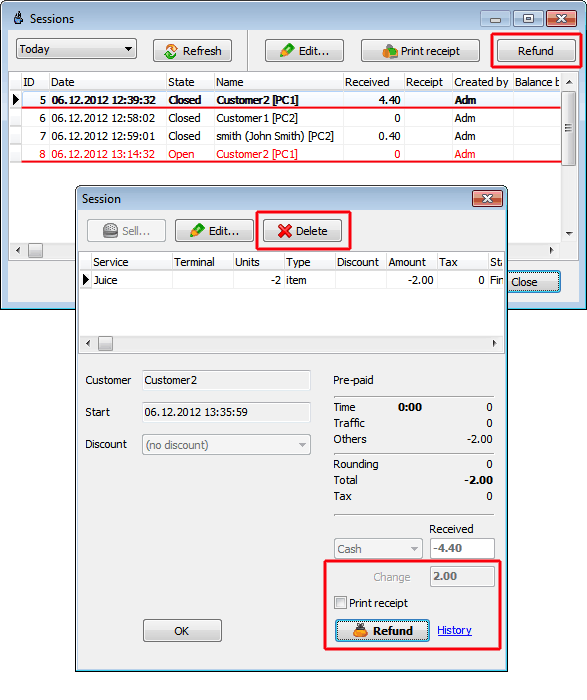
Use a refund (main menu > View > Sessions > Refund) when a customer returns you some purchased items or you have to rollback an entire customer session.
You can only refund closed sessions. When a refund session is created, use the Delete button to leave the refunded items only and click the Refund button. Refund sessions are highlighted with red.
CuteHotspot. Friendly Hotspot Software
Copyright © 2008-2013 TrueCafe, Ltd.
All rights reserved.